New in DigiFi: Self-Service Data Export and Configurable Portal Status Names

With the new Self-Service Data Export introduced in DigiFi’s latest product release, account owners can get the organization data they need, when they need it, without a request to our team. The release also lets lenders set different application status names in their digital lending portals.
Self-Service Data Export
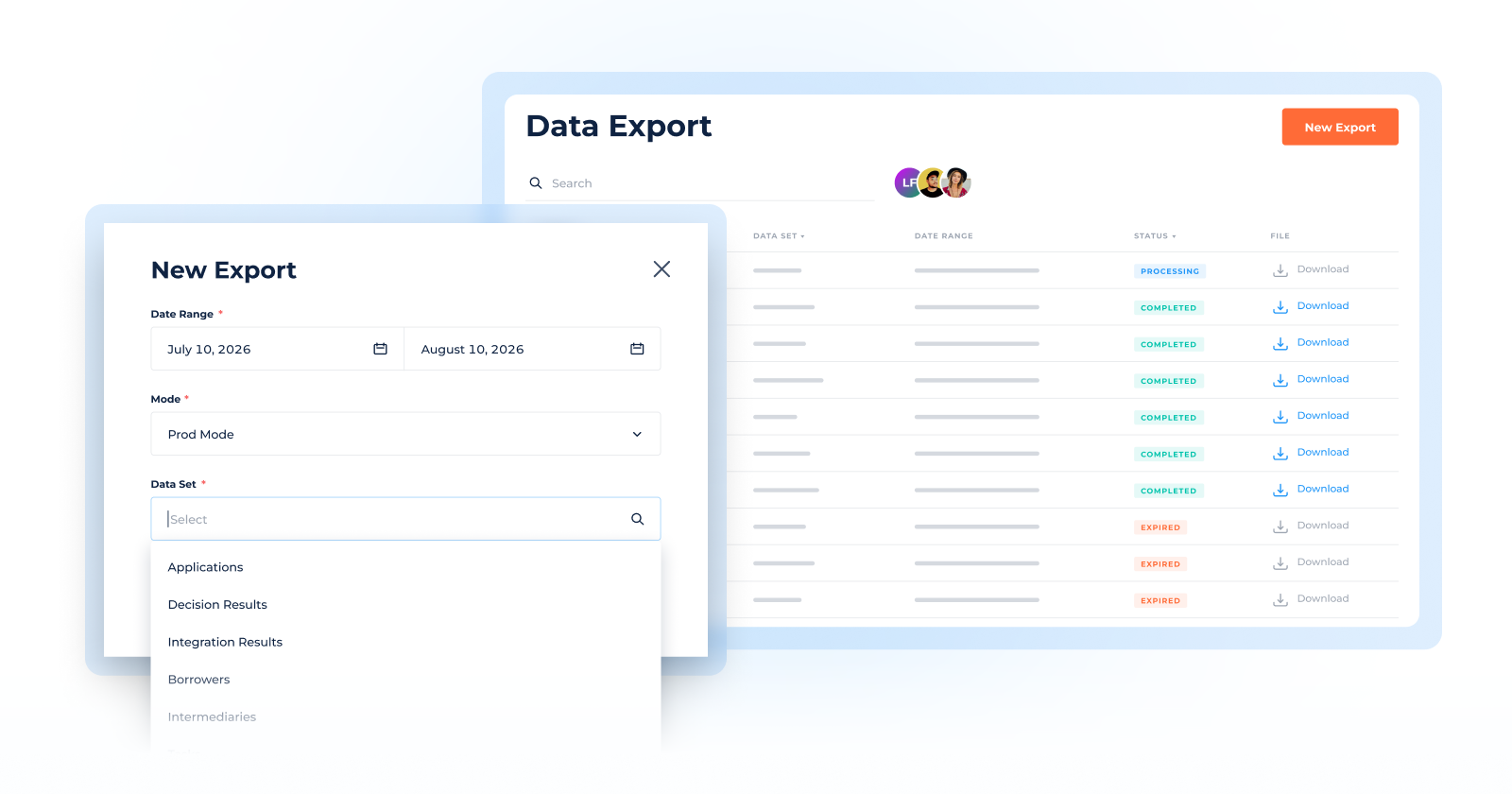
Data Export is another major addition to the DigiFi loan origination system. You can now take your lending data out of DigiFi and into the tools that your team already uses: spreadsheets, BI dashboards, data warehouses, and audit files.
Before this release, a custom data extract often meant a request to our team. Now you make the export yourself, in a few clicks. Navigate to Data & Reporting > Data Export to start.
Export the data that matters to you:
- Various datasets. Export applications, decision results, integration results, and more.
- Only the columns you need. Select a date range, the environment, and the columns to include. You get a clean file that is ready for analysis.
- No waiting. DigiFi makes the export in the background. Continue your work, and download the CSV file when it is ready.
- A full export history. See all previous exports, monitor their status, and download completed files when you need them.
Built with security in mind
Exports can contain sensitive applicant and business information. Thus, we added more protection around each download:
- Identity verification. Before a user downloads a file, DigiFi asks them to confirm their identity again.
- Download links expire. Each download link is valid for a limited time only. After that, nobody can use the link.
- Account owners only. Only account owners can make and download exports. This keeps access to bulk data with the people who are responsible for it.
Configurable Portal Status Names
Many of you asked for more flexible application statuses in the portals. Your internal workflow statuses often show steps that matter to your team, but not to applicants or partners. And a single summary status can be too general to keep them well informed.
Now you can set how each workflow status shows in the standard Borrower Portal and Intermediary Portal. These alternative display names do not change the names of your internal workflow statuses. You can set a different name for each portal, so each audience sees the status in words that are applicable to them.
How to configure it
- Go to Lending Setup > Loan Product > Workflow Statuses.
- Select a workflow status.
- Enable a custom display name for the Borrower Portal, the Intermediary Portal, or both.
- Enter the name to show in each portal.
This setting replaces the Application Status Display setting in Digital Portals Setup and gives you more flexibility and control over how the application workflow looks like in the portals.
Ready to try them out?
Log in to your DigiFi account today to start exporting data on your own schedule and tailoring your portal statuses.